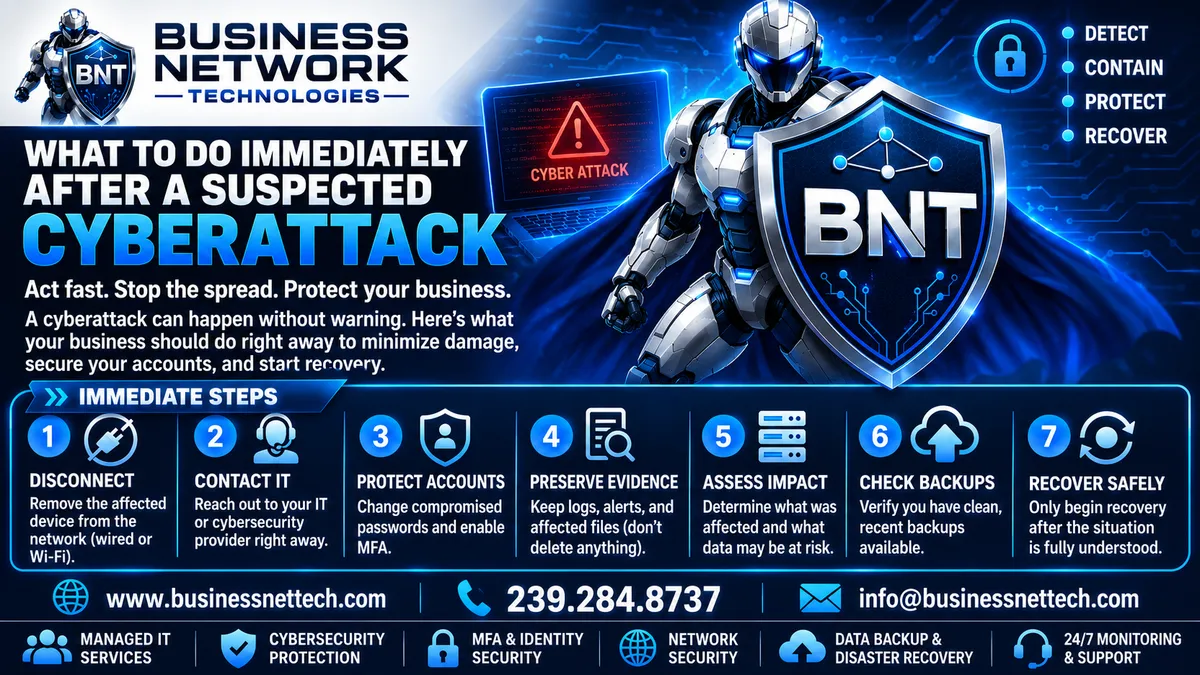
What Should Your Business Do Immediately After a Suspected Cyberattack?
What Should Your Business Do Immediately After a Suspected Cyberattack?
A cybersecurity incident rarely begins with a clear warning that says:
“Your business has been attacked.”
Instead, an employee may notice something unusual.
Their Microsoft 365 password suddenly stops working.
Files begin changing names.
A computer displays a ransomware message.
An employee receives an unexpected MFA request.
Customers report receiving strange emails from someone inside your company.
Antivirus or Endpoint Detection and Response software generates a security alert.
An administrator notices an unfamiliar login.
Money is sent to the wrong bank account after payment instructions were changed.
A server becomes unavailable.
When something like this happens, the first few minutes and hours can be extremely important.
Employees may instinctively start clicking, deleting files, restarting computers, changing settings, or attempting to investigate the problem themselves.
Those actions can sometimes make the situation more difficult.
A better approach is to have a clear cyber incident response plan.
For most small and midsized businesses, the immediate priorities are straightforward:
Contain the problem.
Contact your IT or cybersecurity provider.
Protect accounts.
Preserve evidence.
Determine what was affected.
Check your backups.
Begin recovery only after the situation is understood.
This guide explains what your business should do immediately after a suspected cyberattack, ransomware infection, compromised Microsoft 365 account, malware incident, phishing attack, or unauthorized network access.
First: Do Not Ignore the Warning Signs
Not every strange computer problem is a cyberattack.
A slow computer may simply have a failing hard drive.
An Internet outage may be an ISP problem.
An employee who cannot sign into Microsoft 365 may have forgotten their password.
But certain warning signs deserve immediate attention.
These may include:
Unexpected password changes
Unrecognized Microsoft 365 sign-ins
Repeated MFA prompts that the employee did not initiate
Ransomware messages
Files suddenly becoming encrypted or inaccessible
Unusual file extensions
Antivirus or EDR security alerts
Unknown programs appearing
Unexpected administrator accounts
Email being sent without the user's knowledge
New mailbox forwarding rules
Deleted or missing files
Unusual network traffic
Computers behaving unexpectedly
Accounts being locked without explanation
Customers receiving suspicious emails from your company
Unexpected financial transactions
Changed vendor payment instructions
Unauthorized remote-access sessions
One unusual event may have an innocent explanation.
Several unusual events occurring together may indicate something more serious.
The safest approach is to report suspicious activity quickly and investigate it before it becomes a larger incident.
Step 1: Disconnect the Affected Computer From the Network
If a computer appears to be actively infected, compromised, or encrypting files, one of the first priorities is containment.
Disconnecting the affected system can help prevent malware or an attacker from communicating with other devices.
For a wired computer:
Unplug the Ethernet cable.
For a wireless computer:
Disconnect Wi-Fi.
If necessary, disable the wireless adapter.
Do not immediately reconnect the device simply to see whether the problem disappeared.
The objective is to isolate the potentially compromised computer while your IT provider evaluates what happened.
Why Network Isolation Matters
Many cyberattacks do not remain on one computer.
Malware may attempt to:
Access network shares
Spread to other computers
Communicate with attacker-controlled systems
Reach servers
Encrypt shared files
Steal credentials
Access backup systems
Scan the network
Move laterally between devices
If an infected workstation can still communicate with the rest of the company network, the incident may continue spreading.
A simple network disconnection can sometimes significantly reduce that risk.
Should You Turn the Computer Off?
This is where many people make an understandable mistake.
If something frightening appears on the screen, the first instinct may be:
Hold the power button down.
That is not always the best first action.
If possible, isolate the device from the network and contact your IT or cybersecurity provider before shutting it down.
Why?
A running computer may contain valuable information in memory that can help determine:
What malware was running
What network connections were active
Which processes were involved
What accounts were logged in
What happened immediately before the incident
Turning the computer off may destroy some of that temporary evidence.
However, if malware is actively causing destructive damage and you cannot quickly obtain professional assistance, your incident-response provider may instruct you to take additional containment steps.
The key point is:
Do not randomly reboot, reset, or wipe the system without understanding the consequences.
Step 2: Contact Your IT Provider Immediately
Do not wait until the end of the day.
Do not assume the problem will disappear.
Contact whoever manages your company's technology and cybersecurity.
That may be:
Your internal IT department
Managed Service Provider
Cybersecurity provider
Incident-response company
Network administrator
Microsoft 365 administrator
Tell them exactly what happened.
Useful information includes:
What did you see?
When did it start?
Which computer or employee was affected?
What applications were open?
Was anything downloaded or clicked?
Did the user enter a password?
Did they approve an MFA request?
Was money transferred?
Were files changed or encrypted?
Did antivirus or EDR display an alert?
Is the computer still connected to the network?
The more accurate the initial information, the faster the incident can usually be evaluated.
Do Not Let Employees Investigate the Attack Themselves
Curiosity can create additional problems during a cybersecurity incident.
Employees should not start opening suspicious files, clicking links again, searching through malware folders, or attempting to recreate what happened.
For example:
“Let me click the attachment again so I can show IT what happened.”
That is usually a bad idea.
Instead, document what happened and leave investigation to someone who understands how to examine the system safely.
Step 3: Identify Which Systems May Be Affected
One compromised laptop does not automatically mean the entire business has been breached.
But it should be investigated.
The IT provider may begin determining whether the incident affected:
One workstation
Multiple computers
A server
Microsoft 365
Business email
Cloud storage
Network equipment
VPN access
Remote-access tools
Accounting applications
Backup systems
Customer information
Administrative accounts
This is called determining the scope of the incident.
The question is not simply:
“Which computer looks infected?”
The better question is:
“What systems, accounts, data, and devices could this incident have reached?”
Step 4: Secure Potentially Compromised Accounts
Many modern cyberattacks focus on accounts rather than computers.
A phishing attack may never install malware.
Instead, the employee may accidentally provide their username and password to an attacker.
That can be enough to compromise:
Microsoft 365
Business email
Cloud storage
CRM systems
Financial systems
Remote access
Social media
Vendor platforms
If credentials may have been exposed, they should be treated as compromised until proven otherwise.
Change the Password
The affected account may need a new, strong, unique password.
Do not reuse the old password with minor changes such as:
Password2025 → Password2026
Use a completely different credential.
Check for Password Reuse
Ask whether that employee used the same password anywhere else.
If the password was reused, those accounts may also need to be secured.
This is why unique passwords are so important.
Step 5: Require or Reconfigure Multi-Factor Authentication
If the affected account does not have multi-factor authentication (MFA) enabled, this is an important time to address it.
If MFA is already enabled, review how it is configured.
Attackers sometimes attempt to manipulate MFA through techniques such as repeated authentication prompts.
An employee may see:
Approve Sign-In?
again and again.
Eventually, they may click Approve simply to stop the notifications.
That can give the attacker access.
During an account compromise, your IT provider may need to:
Reset the password
Revoke active sessions
Review registered MFA methods
Remove unknown authentication methods
Require the user to authenticate again
Review trusted devices
Investigate suspicious sign-ins
Changing the password alone may not always end an attacker's existing session.
Step 6: Sign Out Existing Sessions
This is particularly important with cloud platforms such as Microsoft 365.
Suppose an attacker already successfully signed into the employee's account.
Changing the password is important.
But depending on the service and circumstances, the attacker may still have an active authenticated session.
Your Microsoft 365 administrator or IT provider may need to revoke active sessions and force reauthentication.
This helps remove previously authenticated access.
A proper response should consider:
Password
MFA
Active sessions
Connected applications
Authentication methods
rather than changing only one password and assuming the problem is solved.
Step 7: Review Microsoft 365 Sign-In Activity
If business email or Microsoft 365 may be involved, review account activity.
Important areas may include:
Sign-in history
Login locations
IP addresses
Devices
Authentication attempts
Failed logins
Successful logins
Unusual applications
Administrative changes
Look for activity that does not match the employee's normal behavior.
For example:
The employee works in Florida.
The account suddenly signs in from another country shortly after a suspicious phishing message was clicked.
That deserves investigation.
However, location information alone is not always definitive because VPNs, mobile networks, cloud services, and Internet providers can affect geolocation.
The activity should be evaluated as part of the larger picture.
Step 8: Check Email Forwarding and Mailbox Rules
A compromised email account may contain more than suspicious messages.
Attackers sometimes create mailbox rules designed to hide their activity.
For example, a rule might:
Forward email to an external address
Delete incoming messages
Move replies into hidden folders
Redirect financial conversations
Hide security notifications
This can allow an attacker to continue monitoring the mailbox while the employee remains unaware.
If Microsoft 365 or another email account has been compromised, review:
Inbox rules
Forwarding settings
Delegated permissions
Connected applications
Mailbox permissions
Administrative changes
A clean-looking inbox does not necessarily mean nothing happened.
Step 9: Preserve Evidence
One of the most important—and often overlooked—parts of cyber incident response is preserving evidence.
Employees may instinctively want to clean everything immediately.
They delete suspicious messages.
Clear browser history.
Remove files.
Factory-reset devices.
Reinstall Windows.
Delete log files.
Those actions may remove information needed to determine what happened.
Evidence can help answer questions such as:
How did the attacker get in?
When did the incident begin?
Which account was compromised?
What computer was affected first?
Did the attacker access files?
Did malware spread?
Were credentials stolen?
Was data removed?
Were other systems contacted?
Before deleting or rebuilding systems, coordinate with whoever is investigating the incident.
Take Screenshots When Appropriate
If an employee sees something unusual, screenshots can sometimes be helpful.
Examples include:
Ransomware messages
Security warnings
Suspicious login notifications
Unexpected MFA prompts
Antivirus alerts
Fraudulent emails
Error messages
Record the date and approximate time.
However, do not spend excessive time interacting with an actively compromised system simply to gather screenshots.
Containment comes first.
Save Suspicious Emails Instead of Deleting Them
If the incident began with a suspicious email, preserve it.
A cybersecurity professional may want to examine information such as:
Sender address
Reply-to address
Email headers
Links
Attachments
Message routing
Authentication results
Simply forwarding the email may not preserve every useful piece of information.
If possible, keep the original message until your IT provider has reviewed it.
Step 10: Check Other Computers for Similar Activity
If one computer is compromised, investigate whether others experienced the same event.
Ask employees:
Did anyone else receive this email?
Did anyone else click the link?
Did anyone else download the attachment?
Is anyone else seeing unusual pop-ups?
Did anyone else receive unexpected MFA requests?
Security tools may also be able to identify whether:
The same malicious file appeared elsewhere
Another endpoint generated similar alerts
Multiple users visited the same malicious website
Other devices contacted the same suspicious network destination
This is where centralized endpoint monitoring, managed antivirus, and EDR can become especially valuable.
Step 11: Review Antivirus and EDR Alerts
Traditional antivirus can detect known malicious files.
Endpoint Detection and Response (EDR) provides additional monitoring that may help identify suspicious behavior.
Depending on the product and incident, security tools may reveal:
Malware detections
Suspicious processes
File changes
Network activity
Script execution
Ransomware behavior
Quarantined files
Affected devices
Do not automatically delete every alert before reviewing the surrounding information.
The event history may be useful for understanding the incident.
Step 12: Review Administrative Accounts
Administrative credentials are particularly important during a suspected cyberattack.
If an attacker gains administrator access, they may be able to:
Create accounts
Reset passwords
Disable security tools
Change firewall settings
Modify Microsoft 365
Access servers
Delete backups
Install software
Create persistence
Review privileged accounts for unexpected changes.
Ask:
Are there unfamiliar administrator accounts?
Were permissions recently changed?
Did anyone receive administrator rights unexpectedly?
Were security settings modified?
Administrator accounts should receive stronger protection than ordinary user accounts.
Step 13: Check Remote Access
Remote access provides another possible entry point.
Review technologies such as:
VPN
Remote Desktop
Remote support software
Remote management tools
Firewall remote access
Third-party support platforms
Look for:
Unknown remote sessions
Unexpected users
Unrecognized IP addresses
Recently created accounts
Disabled security settings
Unusual login times
Remote access should be protected with strong authentication and MFA wherever appropriate.
Step 14: Review the Firewall and Network
If there is reason to suspect a broader network intrusion, the firewall may contain useful information.
An IT provider may examine:
Firewall logs
VPN logs
Remote-access events
Blocked connections
Unusual traffic
Port-forwarding rules
Administrative changes
Newly created rules
The goal is to determine whether the incident remained isolated or involved other parts of the business network.
Do not randomly change firewall settings during the investigation unless necessary for containment.
Changes can make the original event harder to understand.
Step 15: Protect Your Backups
Backups are extremely important during a cyberattack.
They can also become targets.
Modern ransomware operators understand that a business with working backups may be able to recover without paying a ransom.
Attackers may therefore attempt to:
Delete backups
Encrypt backup files
Disable backup software
Compromise backup administrator accounts
Destroy recovery points
Access network-attached backup storage
During a suspected cyberattack, determine whether your backup environment may have been exposed.
Do not assume:
“We have backups, so everything is fine.”
Verify them.
Step 16: Review Backup Status
Check when backups last completed successfully.
You may need to review:
Server backups
Workstation backups
Endpoint backups
File backups
Cloud backups
Microsoft 365 backups
Database backups
Off-site backups
Ask:
When was the last successful backup?
Are multiple recovery points available?
Did backup jobs continue normally?
Are there failures?
Could the attacker access the backup system?
Are off-site or isolated copies available?
Do not immediately restore from the newest backup without first determining when the incident began.
The Latest Backup May Not Be the Best Backup
Suppose ransomware was discovered on Friday.
The company has a successful backup from Thursday night.
That sounds ideal.
But what if the attacker originally compromised the network on Tuesday?
The Thursday backup may contain files or system changes associated with the compromise.
That is why businesses should maintain multiple recovery points when possible.
Incident response may require identifying a restore point from before the environment became compromised.
Step 17: Do Not Start Restoring Too Early
Restoring data immediately may seem like the fastest way to get employees working again.
But recovery should usually follow containment and investigation.
Otherwise, you could:
Restore the system while the attacker still has access.
or
Restore infected data into the environment.
A safer sequence is:
Contain → Investigate → Secure → Verify Backups → Recover
Recovery is important.
But recovery should occur into an environment that is understood and secured.
Step 18: Determine Whether Data Was Accessed or Stolen
Not every cyberattack involves data theft.
But businesses should investigate the possibility.
Attackers may target:
Customer information
Employee information
Financial records
Tax documents
Medical information
Business contracts
Email
Intellectual property
Login credentials
Payment information
This question becomes particularly important because certain types of information may trigger legal, contractual, regulatory, insurance, or notification requirements.
If sensitive data may have been accessed, involve appropriate legal, compliance, cybersecurity, and insurance professionals.
Step 19: Contact Your Cyber Insurance Provider
If your business has cyber insurance, review your policy early in the incident.
Some policies have specific requirements regarding:
How quickly incidents must be reported
Which incident-response companies can be used
Which attorneys should be contacted
Forensic investigation
Ransomware negotiations
Business interruption
Notification expenses
Recovery costs
Do not assume you can hire any vendor, spend money, and receive reimbursement later.
Contact the insurer or broker and follow the policy requirements.
Step 20: Consider Legal and Regulatory Requirements
Depending on your industry, location, contracts, and the type of information involved, a cybersecurity incident may create reporting obligations.
Examples may involve:
Personal information
Financial information
Healthcare information
Payment card information
Government information
Customer records
Businesses should consult qualified legal or compliance professionals when required.
Your IT provider can investigate the technology.
Legal counsel can help determine legal notification obligations.
Those are different responsibilities.
Step 21: Be Careful With Internal Communication
Employees need information during an incident—but speculation can create confusion.
Avoid messages such as:
“We've definitely been hacked and everything has been stolen.”
unless that has actually been confirmed.
Instead, communicate known facts.
For example:
“We are investigating a cybersecurity incident affecting several systems. Please leave your computer powered on but disconnected from the network until IT provides instructions.”
or:
“Do not open the email with the subject ______. If you already opened it, contact IT immediately.”
Clear instructions are more useful than rumors.
Step 22: Do Not Use Compromised Email to Coordinate Sensitive Response Information
If you suspect company email itself has been compromised, consider whether it is appropriate to use that same email system to discuss the investigation.
An attacker who still has mailbox access may be able to read those conversations.
Your incident-response team may establish another trusted communication method until email security is confirmed.
Step 23: If Money Is Involved, Act Immediately
Cyberattacks sometimes become financial fraud.
A common scenario involves a criminal compromising an email account and changing payment instructions.
For example:
A vendor normally receives payments at one bank.
The attacker sends:
“We've changed banks. Please send future payments to this new account.”
The employee believes the request is legitimate and sends the payment.
If fraudulent money movement is discovered:
Contact the financial institution immediately.
Speed matters.
Your bank may have procedures for attempting to stop, recall, freeze, or trace a transaction.
The incident should also be escalated to the appropriate internal, legal, insurance, and law-enforcement contacts depending on the circumstances.
Step 24: Document Everything
During a cyberattack, events can happen quickly.
Keep a written incident timeline.
Document:
When the issue was first noticed
Who reported it
Which computer was involved
Which account was involved
What the employee was doing
What alerts appeared
When the device was disconnected
When IT was contacted
Which passwords were changed
Which accounts were disabled
Which systems were examined
What security tools detected
What backups were reviewed
What recovery actions were performed
This documentation can later help with:
Incident analysis
Insurance claims
Legal review
Compliance
Cybersecurity improvements
Employee training
Future incident response
Memories become less reliable as an incident continues.
Write things down.
Step 25: Determine How the Attack Started
Once the immediate threat has been contained, investigate the initial access method.
Common possibilities include:
Phishing email
Stolen password
Password reuse
Missing MFA
Malicious attachment
Compromised remote-access account
Unpatched software
Vulnerable firewall or VPN
Malicious website
Infected download
Compromised vendor account
Social engineering
Exposed remote service
Understanding the entry point is essential.
Otherwise, the company may restore everything and leave the original vulnerability unchanged.
Do Not Simply Remove the Malware and Move On
Imagine malware was discovered on a workstation.
The technician removes it.
The computer appears normal.
Everyone goes back to work.
Problem solved?
Not necessarily.
The business should still ask:
How did it get there?
Did the attacker steal credentials?
Did the malware communicate with external systems?
Did it access network shares?
Did it spread?
Were other computers affected?
Was any information stolen?
What security control failed?
Removing malicious software is only one part of incident response.
Step 26: Look for Persistence
Attackers sometimes create ways to return even after the original compromise is discovered.
Examples can include:
New user accounts
Changed passwords
Added MFA methods
Remote-access software
Startup programs
Scheduled tasks
Mailbox forwarding
Malicious applications
Browser extensions
Administrative changes
A proper incident investigation should look for signs that the attacker attempted to maintain access.
Otherwise, the organization may think the incident has been resolved when the attacker still has another way in.
Step 27: Patch Vulnerable Systems
If the attack involved a known vulnerability, update affected systems after appropriate evidence has been preserved and the environment is ready for remediation.
This may include:
Windows
Servers
Browsers
Business applications
Firewalls
VPN appliances
Network devices
Third-party software
Patch management is one of the most important components of proactive cybersecurity.
But simply installing patches after the incident may not be enough.
The organization should also determine why the vulnerable system was not updated previously.
Step 28: Scan Other Endpoints
A cybersecurity incident discovered on one computer may indicate a larger problem.
Other workstations and servers may need to be examined using:
Managed antivirus
Endpoint Detection and Response
Endpoint monitoring
Security scans
System logs
Network monitoring
The objective is to determine whether the indicators associated with the attack appear elsewhere.
This is one of the advantages of centrally managed security tools.
Instead of examining computers one at a time manually, the IT provider may have greater visibility across the entire environment.
Step 29: Verify Backups Before Returning to Normal Operations
Before declaring the incident resolved, confirm that backup and recovery systems remain functional.
Review:
Backup jobs
Recovery points
Backup storage
Credentials
Retention
Off-site copies
Restore capabilities
If systems must be rebuilt, test whether required data can actually be restored.
A successful backup notification is useful.
A successful restore test is stronger evidence that recovery is possible.
Step 30: Restore Systems Carefully
Once the environment has been secured, affected systems can begin returning to service.
Depending on the incident, recovery may involve:
Removing malware
Rebuilding a workstation
Reinstalling Windows
Restoring files
Restoring servers
Resetting passwords
Reconfiguring MFA
Reinstalling applications
Rejoining devices to management systems
Updating security software
Reconfiguring firewall rules
Do not reconnect systems until you have reasonable confidence that doing so will not reintroduce the problem.
A Simple Cyberattack Response Sequence
For small businesses, the immediate process can be remembered like this:
1. Recognize
Identify suspicious activity.
2. Isolate
Disconnect affected devices when appropriate.
3. Report
Contact IT or your cybersecurity provider immediately.
4. Preserve
Keep logs, messages, screenshots, alerts, and other evidence.
5. Secure
Protect affected accounts, passwords, MFA, and sessions.
6. Investigate
Determine what systems and data were affected.
7. Verify
Check backups and recovery points.
8. Recover
Restore systems only after the environment is secured.
9. Review
Determine how the incident occurred.
10. Improve
Correct the weaknesses that allowed it to happen.
That is the foundation of an effective small business cyber incident response plan.
What Employees Should Do During a Suspected Cyberattack
Employees do not need to become cybersecurity investigators.
They need to know how to respond.
A simple employee procedure can be:
Stop what you are doing.
Disconnect the affected computer from the network if instructed or if obvious malicious activity is occurring.
Do not delete anything.
Do not click the suspicious link again.
Do not attempt to fix the computer yourself.
Contact IT immediately.
Explain exactly what happened.
Follow the incident-response instructions you are given.
Simple procedures are easier to remember during a stressful event.
What Not to Do After a Suspected Cyberattack
Some actions can make an incident worse.
Avoid:
Ignoring the warning
Continuing to use a clearly compromised system
Clicking suspicious links again
Deleting evidence
Clearing logs
Factory-resetting devices without guidance
Reinstalling Windows immediately
Reconnecting isolated systems too early
Restoring backups before understanding the attack
Using the same compromised password
Assuming password changes alone solved the problem
Discussing sensitive response details through an account suspected of being compromised
Paying a ransom without professional, legal, insurance, and law-enforcement guidance
Assuming one affected computer means no other systems were involved
Cyber incident response should be deliberate rather than improvised.
Ransomware Requires Immediate Attention
Ransomware is one of the clearest examples of why fast containment matters.
Possible warning signs include:
Files suddenly cannot be opened
File extensions change
Ransom notes appear
Shared folders become unavailable
Large numbers of files are changing rapidly
Security software detects ransomware-like activity
If ransomware is suspected:
Isolate affected systems quickly.
Contact your IT or cybersecurity provider.
Protect backup infrastructure.
Determine whether other devices are affected.
Do not begin restoring until the environment has been investigated and secured.
The goal is not simply to recover one computer.
The goal is to prevent reinfection and restore the business safely.
Microsoft 365 Account Compromise Requires a Different Response
Not every cyberattack involves ransomware.
A compromised Microsoft 365 account may appear completely normal on the employee's computer.
The attack exists in the cloud.
A response may involve reviewing:
Passwords
MFA
Active sessions
Sign-in history
Authentication methods
Mailbox rules
Forwarding
Delegates
Sent Items
Deleted Items
Administrative changes
Connected applications
Suspicious messages
This is why businesses need an incident-response plan that covers identities and cloud services, not just computers.
Backups Are Your Safety Net—but Only If They Work
Businesses often say:
“We are protected because we have backups.”
That is a good start.
But during a cyberattack, you need to know:
Are the backups current?
Are they intact?
Were they accessible to the attacker?
Are multiple restore points available?
Can the data actually be restored?
How long will recovery take?
Backups should be part of a broader business continuity and disaster recovery strategy.
They should also be monitored and periodically restore-tested before an emergency occurs.
Prevention Makes Incident Response Easier
The best time to prepare for a cyberattack is before one happens.
Businesses that already have strong cybersecurity controls may have much greater visibility during an incident.
Useful protections include:
Managed antivirus
Endpoint Detection and Response
Remote monitoring and management
Windows patch management
Third-party patching
Multi-factor authentication
Email security
Dark web monitoring
Endpoint backup
Server backup
Microsoft 365 backup
Firewall management
Network segmentation
Security awareness training
Secure remote access
Account monitoring
Cybersecurity documentation
No security product guarantees that a cyberattack will never happen.
The objective is to make attacks harder to execute, easier to detect, easier to contain, and easier to recover from.
Create a Cyber Incident Response Plan Before You Need One
During an emergency is not the ideal time to decide who should be contacted.
A basic small business cyber incident response plan should answer:
Who do employees call first?
Who manages Microsoft 365?
Who manages the firewall?
Who manages backups?
Who contacts cyber insurance?
Who makes business decisions during the incident?
Where are important recovery credentials stored?
How will employees communicate if email is unavailable?
Where is critical documentation stored?
How will systems be restored?
Even a simple written plan is better than improvising during an attack.
Keep Important Contact Information Available Offline
There is one practical step many businesses overlook.
What happens if:
The server is down?
Microsoft 365 is inaccessible?
The Internet is unavailable?
The password manager cannot be reached?
The business still needs critical incident-response information.
Consider maintaining secure offline access to important information such as:
IT provider contact
Cyber insurance contact
Internet provider
Key vendors
Legal contact
Financial institution
Emergency decision makers
Do not store sensitive passwords insecurely.
But make sure the company can still locate the people it needs during an emergency.
After Recovery, Conduct a Post-Incident Review
Once the immediate emergency is over, the work is not completely finished.
Review what happened.
Ask:
How did the incident begin?
How quickly was it detected?
How quickly was IT contacted?
Did employees know what to do?
Did security software detect the attack?
Were MFA protections working?
Were systems properly patched?
Did backups work?
How long did recovery take?
What could have prevented the incident?
What should change before the next one?
The goal is not to blame employees.
The goal is to strengthen the business.
Every cybersecurity incident should produce lessons that improve future protection.
Cyberattack Response Checklist for Small Businesses
If you suspect a cybersecurity incident, use this as a high-level checklist:
Disconnect clearly affected systems from the network when appropriate
Contact your IT or cybersecurity provider immediately
Do not randomly reboot, wipe, or reset affected computers
Preserve suspicious emails, logs, alerts, and evidence
Document what happened and when
Identify affected employees, devices, and systems
Reset compromised credentials
Check for password reuse
Review MFA settings
Revoke suspicious active sessions
Review Microsoft 365 sign-in activity
Check mailbox forwarding and inbox rules
Review administrator accounts
Review VPN and remote-access activity
Examine antivirus and EDR alerts
Determine whether other computers are affected
Review firewall and network activity if necessary
Protect backup infrastructure
Verify available backup recovery points
Determine whether sensitive data may have been accessed
Contact cyber insurance when appropriate
Consult legal or compliance professionals when required
Restore systems only after the environment has been secured
Identify the original cause
Patch vulnerabilities
Improve security controls after recovery
The exact response will depend on the incident, but these steps provide a strong starting point.
What Should Your Business Do Immediately After a Suspected Cyberattack?
The most important thing is not to panic and not to ignore it.
A suspected cybersecurity incident should trigger a structured response:
Disconnect affected systems.
Contact IT immediately.
Preserve evidence.
Secure accounts.
Review Microsoft 365 and remote-access activity.
Determine what was affected.
Protect and verify backups.
Recover carefully.
Then determine how the incident happened and strengthen the environment.
The first response can influence how much damage occurs and how quickly the business can recover.
A company that already has managed cybersecurity, endpoint monitoring, EDR, MFA, secure backups, patch management, email security, network protection, and an incident-response plan is generally in a much stronger position than a company trying to build those protections after an attack has already begun.
Prepare Before the Cyberattack Happens
Cybersecurity is not only about preventing attacks.
It is also about being prepared when prevention fails.
Business Network Technologies (BNT) helps small and midsized businesses strengthen their cybersecurity through managed IT services, endpoint protection, managed antivirus, Endpoint Detection and Response (EDR), Microsoft 365 security, multi-factor authentication, business data backup, server backup, patch management, email security, network management, secure remote access, monitoring, and disaster recovery planning.
The goal should not simply be:
“Can we stop every cyberattack?”
No organization can guarantee that.
A better question is:
“If something happens tomorrow, can we detect it, contain it, protect our data, and recover our business?”
That is what a strong cybersecurity and incident-response strategy should help accomplish.
Business Technology Tips from Business Network Technologies
Technology does not have to be confusing. Follow Business Network Technologies' Business Technology Tips for practical guidance about cyberattack response, cybersecurity incident response, ransomware recovery, Microsoft 365 security, business email compromise, managed IT services, endpoint security, EDR, business backups, disaster recovery, patch management, network security, and small business cybersecurity designed to help businesses stay secure, productive, and prepared.